ubuntu-pics.de Logo
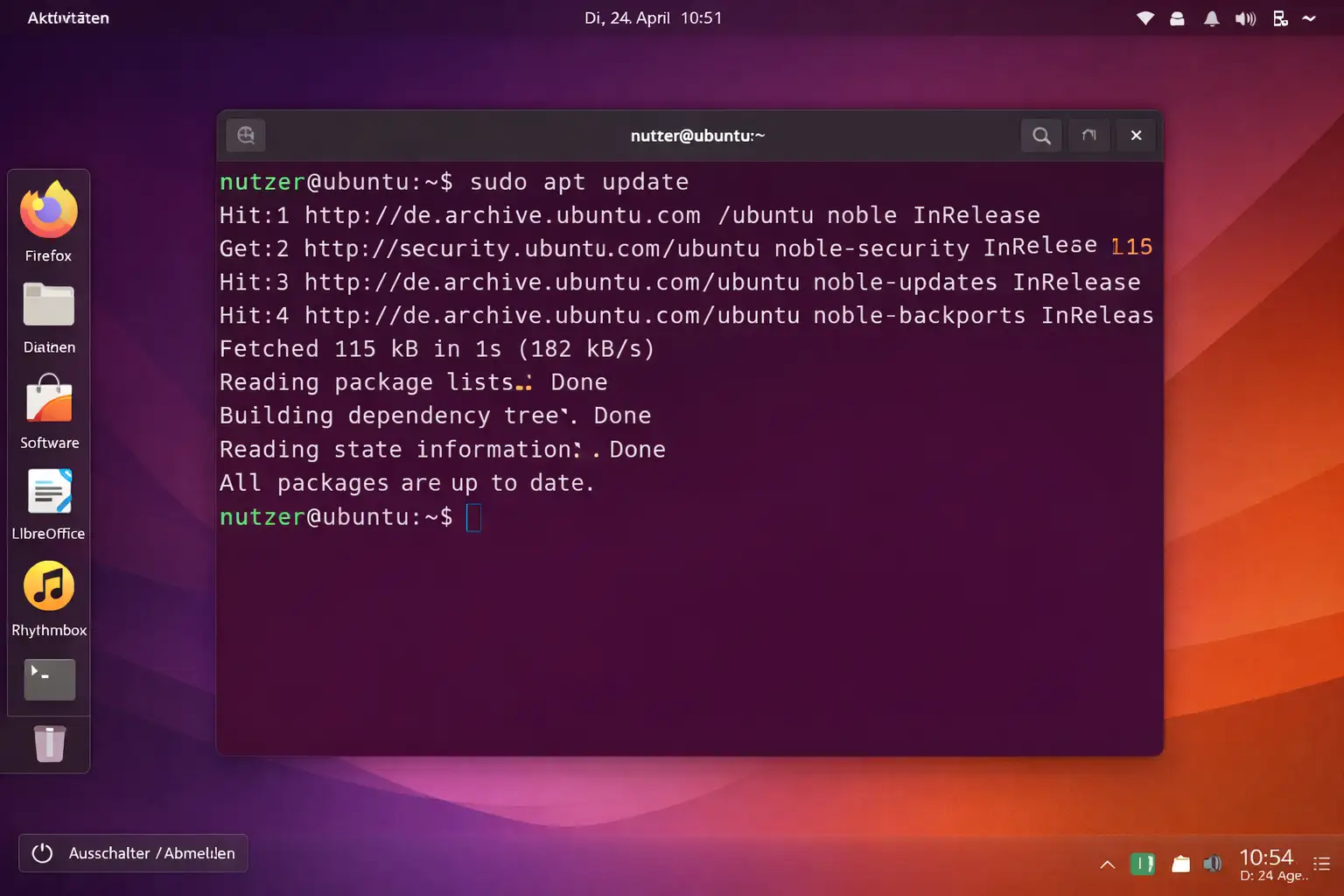
Ubuntu terminal running apt update – typical FAQ use case
Classic Ubuntu terminal: sudo apt update fetching the package index fresh from the server

This FAQ has been growing since 2008. Started with the most common installation problems from German Ubuntu forums, dozens more entries followed over the years. We update answers when new Ubuntu versions change things – outdated solutions help nobody.

The answers assume you know how to open a terminal (Ctrl + Alt + T) and are willing to type commands. If you're not there yet, Ubuntu is actually quite usable without a terminal for most daily tasks – but for the problems on this page, the terminal is usually the way to go.

📦 Installation & System

Which Ubuntu version should I install?

For regular use, always go with the current LTS version (Long Term Support). It gets 5 years of security updates, compared to only 9 months for non-LTS releases. Right now Ubuntu 24.04 LTS "Noble Numbat" is the right choice.

Exception: if you need the very latest hardware support (freshly released GPUs, new processors), a non-LTS release might make sense – but you'll need to upgrade every 6 months.

lsb_release -a
# shows which version is currently running
🟠 Plain English – what does LTS mean?
LTS stands for "Long Term Support". It means Canonical (the company behind Ubuntu) delivers security updates and bug fixes for five years. For regular users this is always the better choice over interim releases that only get 9 months of support.
How much RAM does Ubuntu need?

Ubuntu with GNOME officially runs on 4 GB RAM but feels noticeably better with 8 GB. On older machines with 2 GB or less, consider Ubuntu MATE or Lubuntu – both are much lighter on resources than standard GNOME.

For a headless server, 512 MB is fine.

How do I upgrade Ubuntu to the latest version?

Before upgrading, install all current updates first:

sudo apt update && sudo apt upgrade

Then start the version upgrade:

sudo do-release-upgrade

This can take 20 to 60 minutes depending on your internet speed. A backup beforehand is a good idea, even though upgrades usually go smoothly.

Ubuntu won't boot after a kernel update

Hold Shift (Legacy BIOS) or Esc (UEFI) at boot to get the GRUB menu. Select "Advanced options for Ubuntu" and boot from an older kernel.

Once the system is up:

sudo apt install --fix-broken
sudo dpkg --configure -a
sudo update-grub

To remove a specific broken kernel: sudo apt remove linux-image-VERSION – but only the problematic one, never all of them.

How do I set up dual boot with Windows?

First, disable Fast Startup in Windows (Control Panel → Power Options → Choose what the power buttons do → Turn on fast startup – uncheck it). Otherwise Ubuntu can't cleanly access the Windows partition.

Then install Ubuntu alongside Windows – the installer detects Windows automatically and offers "Install Ubuntu alongside Windows". GRUB is configured automatically afterward.

On UEFI systems: make sure Secure Boot is either supported (Ubuntu 22.04+ handles it fine) or disabled in BIOS first.

📶 Hardware & Drivers

Wi-Fi adapter not detected

Identify the adapter first:

lspci | grep -i network
# or for USB adapters:
lsusb

Then check Settings → Software & Updates → Additional Drivers. For Broadcom chips (BCM43xx), the proprietary driver is usually the fix:

sudo apt install bcmwl-kernel-source

For Intel chips, firmware updates often do the job:

sudo apt install firmware-iwlwifi
sudo modprobe -r iwlwifi && sudo modprobe iwlwifi
NVIDIA GPU: which driver to install?

The easiest way is through Ubuntu directly:

ubuntu-drivers devices
# shows recommended drivers

sudo ubuntu-drivers autoinstall
# installs the recommended driver

Or via GUI: Software & Updates → Additional Drivers. Pick the latest stable driver.

For CUDA workloads or ML development, the driver directly from NVIDIA's repository might be more up to date.

No audio after installation

Quick fix – restart PulseAudio:

pulseaudio --kill && pulseaudio --start

If there's still no sound: open alsamixer in terminal. Use arrow keys to navigate between channels, M toggles mute. Often "Master" or "PCM" is muted without any visible indication.

On PipeWire systems (Ubuntu 22.10+):

systemctl --user restart pipewire pipewire-pulse

🖥 Desktop & GNOME

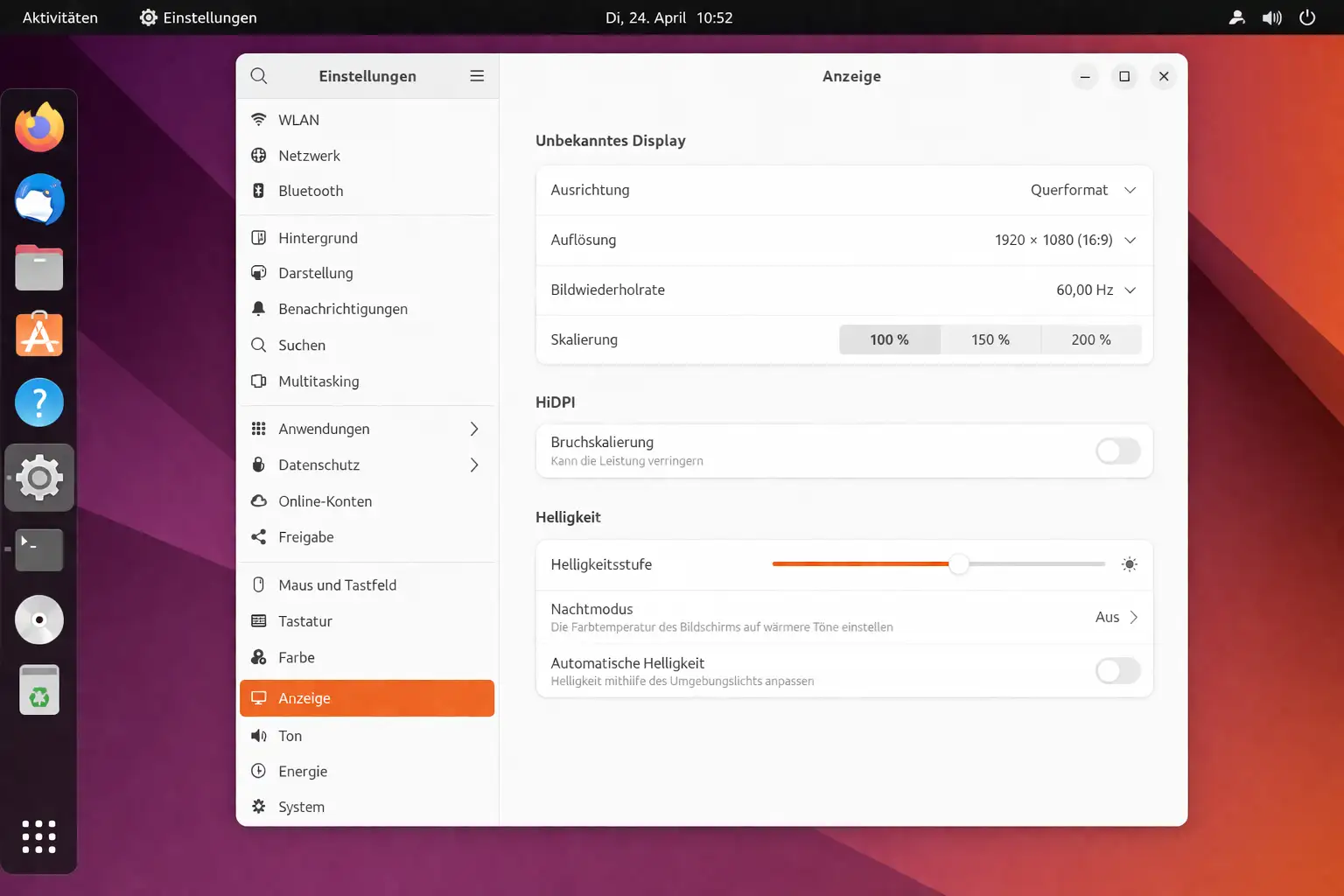
Ubuntu GNOME Settings panel – overview of configuration options
GNOME Settings in Ubuntu 24.04 – most desktop configuration lives here
Software Center won't open

In Ubuntu 22.04+ the Snap Store is the default software center. If it won't open:

snap refresh snap-store

If that doesn't help:

sudo snap remove snap-store
sudo snap install snap-store

If you want to avoid Snaps entirely, install gnome-software as an alternative:

sudo apt install gnome-software
How to show desktop icons in GNOME

GNOME doesn't show desktop icons by default. Three options:

1. GNOME Tweaks:

sudo apt install gnome-tweaks

Then in Tweaks under "Desktop" enable icons.

2. Extension "Desktop Icons NG": Install via the GNOME Extensions browser – more reliable.

3. Nautilus setting (Ubuntu 22.04+):

gsettings set org.gnome.desktop.background show-desktop-icons true
Screen goes to sleep too quickly

Settings → Power → Screen → "Automatic Screen Blank" – adjust or set to "Never".

Via terminal:

gsettings set org.gnome.desktop.session idle-delay 0
# 0 = never

🔧 Terminal & Package Management

apt vs snap vs flatpak – which should I use?

Short answer: apt first.

apt packages come from Ubuntu's repositories, are well tested and tightly integrated with the system. They start fast and use less memory.

Snap packages run in sandboxes, start slower and use more disk space – but some software (e.g. Firefox in Ubuntu 22.04+) is only available as Snap.

Flatpak is similar to Snap but not installed by default. Useful for software that's outdated in the Ubuntu repos.

apt search PACKAGE_NAME
snap find PACKAGE_NAME
flatpak search PACKAGE_NAME
Fix broken packages

When apt complains with error messages:

sudo apt --fix-broken install
sudo dpkg --configure -a
sudo apt autoremove

If a specific package is causing trouble:

sudo dpkg -r PACKAGE_NAME
sudo apt install PACKAGE_NAME
Reading logs when something breaks

The fastest route to error logs:

# System log (everything):
journalctl -xe

# Only errors in the last hour:
journalctl --since "1 hour ago" -p err

# Log for a specific service:
journalctl -u NAME.service

# Kernel messages:
dmesg | tail -50

Further Resources

This FAQ covers the most common issues, but Ubuntu has a huge community that helps with more specific questions. Key resources:

  • askubuntu.com – Stack Exchange for Ubuntu questions, excellent signal-to-noise ratio
  • ubuntuusers.de – the largest German-language Ubuntu forum
  • ubuntu.com/documentation – official documentation

And of course the archive section of this site with documentation on older Ubuntu versions. Useful if you're maintaining a server that hasn't been upgraded and need version-specific information.